
Wallets
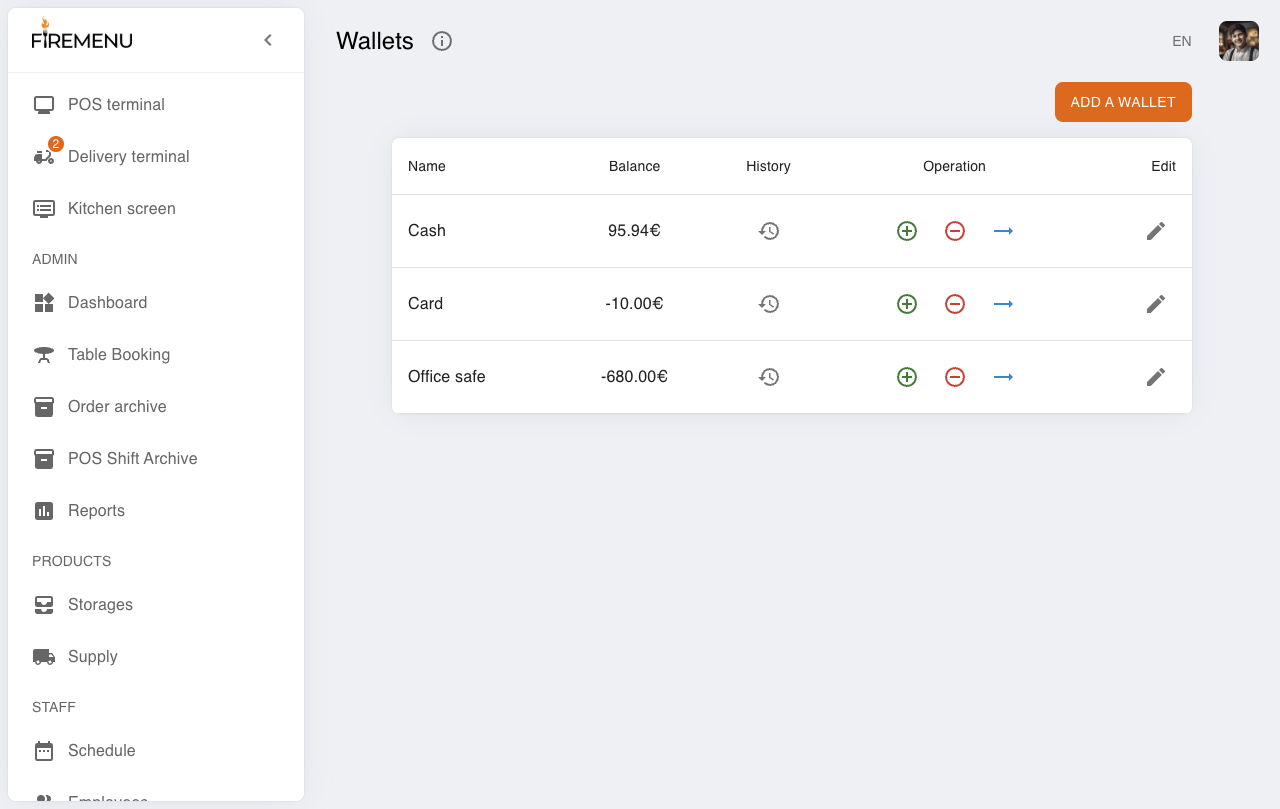
The “Wallets” section shows how much money sits in each “jar” for your venue: cash drawer, bank-side wallet, operating accounts, and so on. Here you record cash movements and transfers between wallets so figures match reality at shift close and in reporting.
Why venues use this
- One clear balance per wallet — fewer mismatches between the drawer and the app.
- Transparent history — who moved what and when; easier to settle disputes.
- Separated tracking for cash-outs and transfers — less chaos before reconciling with accounting or closing a shift.
What you see on screen
Each row shows the name, balance, history link, and action buttons:
- Plus — record money into this wallet (for example topping up cash or another agreed inbound movement).
- Minus — record money out of this wallet (spending, including cash taken out as part of incasation or any payout you categorize).
- Arrow — transfer an amount to another wallet (typical pattern: cash leaving the drawer toward a bank or designated operating wallet in your bookkeeping model).
Some wallets can be marked hidden so they stay out of the view for staff who only need front-of-house cash handling.
Transfers and fees on the amount
Use a transfer when funds actually move from one wallet to another rather than leaving the books as an uncategorized payout. When bank or acquirer fees matter for your workflow, they can be reflected so the receiving wallet ends up after commission, while still keeping a traceable trail.
Categories on income and spending
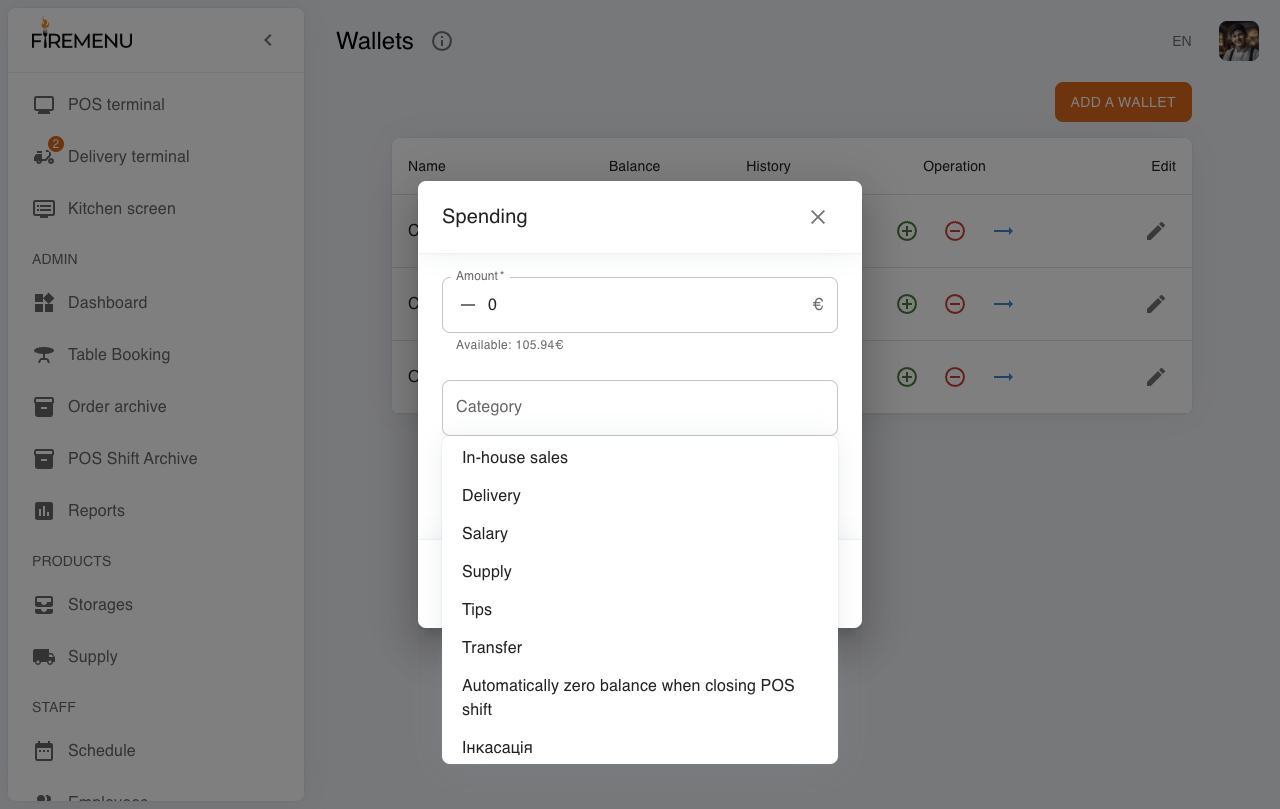
The category field mixes preset options meaningful for hospitality (sales in house, delivery, tips, etc.) with your own labels saved for next time. For cash-outs teams usually agree one steady name (often “Incasation”) so reporting and history stay consistent. If nothing fits, type your label once — it will appear for reuse later.
Who can do what
Rights are configured by an administrator:
- Perform wallet operations — use plus, minus, and transfers; without this, you can usually only browse.
- Edit wallets — create wallets and change settings (below), not only view balances.
- View hidden wallets — see operational or technical wallets when your venue uses them.
- Cancel wallet operations — revert an incorrect entry where your processes allow.
Adding a wallet and tuning its behavior
With edit rights you can add a wallet and decide how it behaves:
- Name — how it appears in the list (“Cash”, “Terminal”, “Bank”, etc.).
- Starting balance applies when creating the wallet; afterwards the balance moves only through logged operations — fewer accidental edits without audit trail.
- Commission percentage — when typical fees apply on incoming transfers or payouts for that wallet.
- Hidden — keeps specialized wallets away from everyday staff lists.
- Cash vs card orders — influences which wallet POS payments primarily land on, so drawer and terminal paths stay understandable.
- Zero balance when closing a POS shift — for setups where part of the balance does not roll to the next shift because your policy settles it each night or each close.
History and cancellation
Use History on a row for the ledger. Where your policy allows cancellation and the user has permission, mistaken entries can be undone without secretly editing balances.
Where else wallets show up
- Financial reports help compare wallet balances across periods.
- Salary payouts may deduct from a chosen wallet when your workflow does it that way (see the shift schedule and salary article).
- Closing a POS shift should align with what the cash wallet shows after all moves for the day.
Step-by-step (cash-out / incasation)
Open Finance → Wallets and find the cash wallet (for example, Cash).
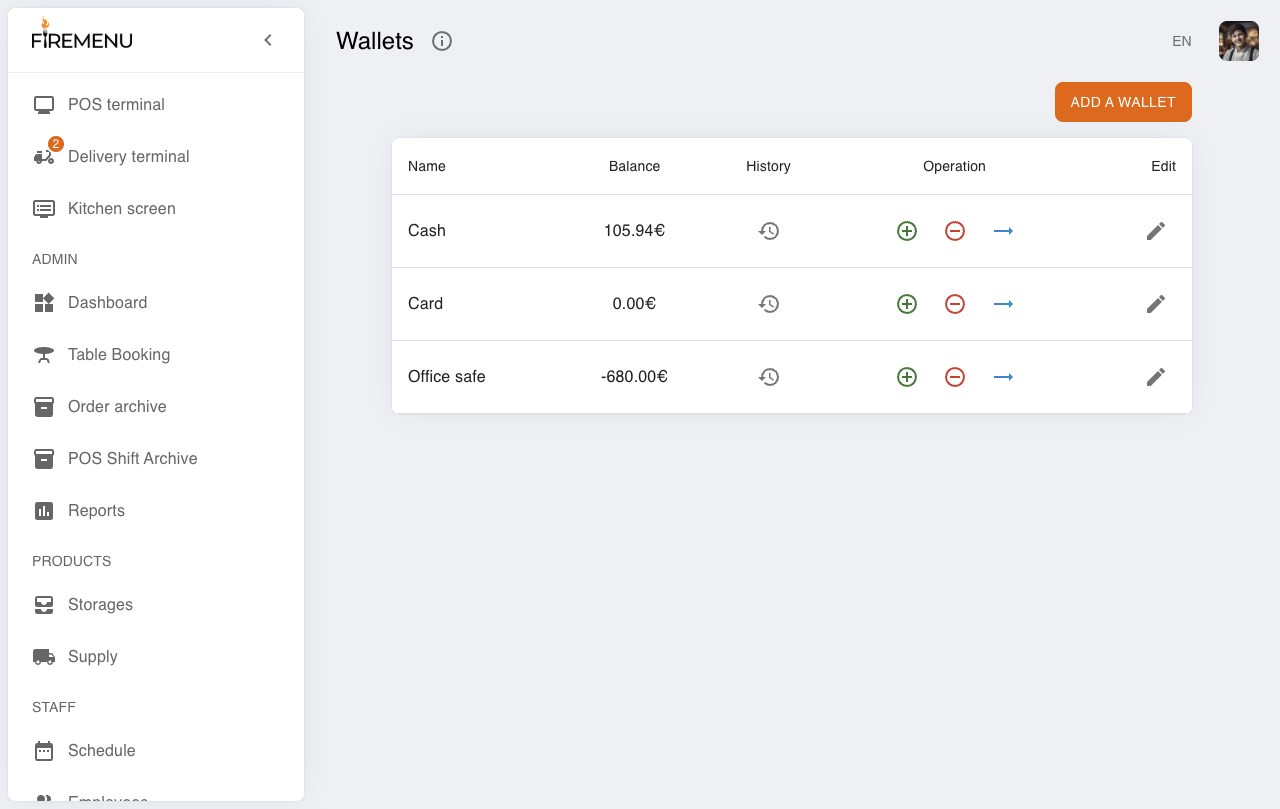
On that row click minus — this opens “Spending”.
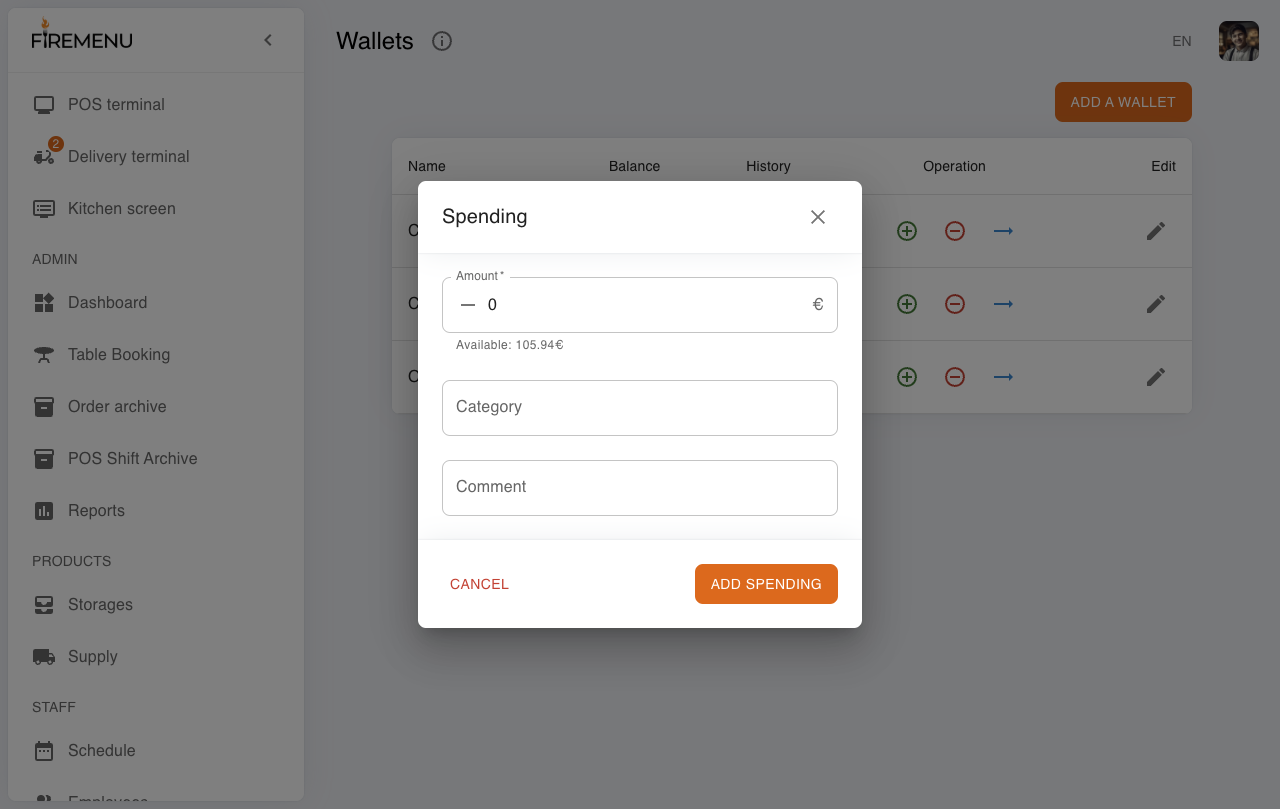
Enter the amount. Under “Category”, choose the agreed label such as “Incasation”, or type the name your venue standardized (screens may show localized spelling).
Confirm with Add Spending at the bottom of the dialog.
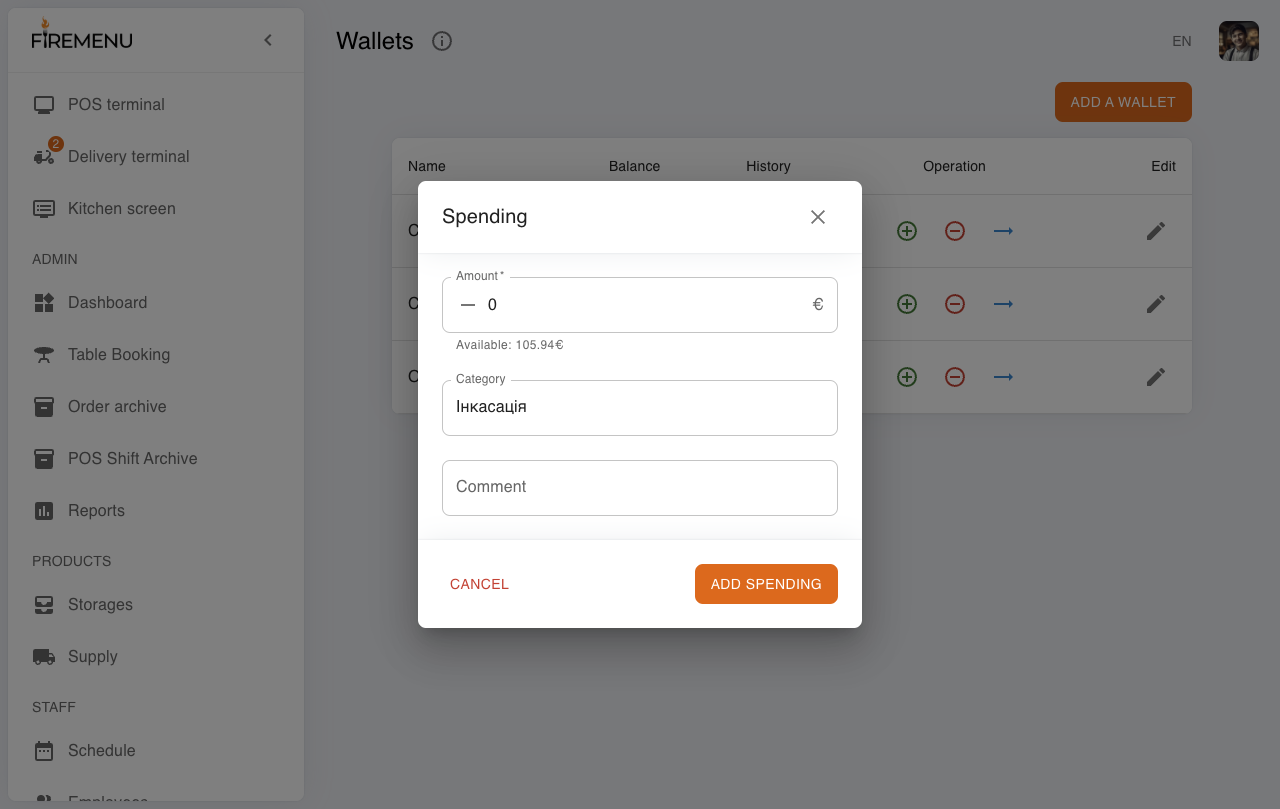
Confirm the cash balance dropped by the cash-out amount.
Important when closing a POS shift
When closing a POS shift, compare actual cash in the drawer with the app. If someone performed incasation during the shift, make sure it is logged as spending using your venue’s agreed category for cash-outs.
Common issues
-
Plus/minus/transfer disabled. Ask an administrator for permission to perform wallet operations.
-
Missing category. Type your label once — it becomes available afterward.
-
Balance still does not match cash. Review history and confirm every intake and payout for the shift, including cash-outs.