
POS shifts
A POS shift records a cashier’s working period in the POS terminal: opening balances, sales, expenses, refunds, and closeout totals.
What it is and when to use it
- Open a POS shift at the start of the workday or before you begin selling.
- Close a POS shift at the end of the shift to lock totals and generate a report.
- This section is relevant for staff who have permission to open/close POS shifts.
Prerequisites
- The staff member has the permission “Open and close POS shifts in the POS terminal” enabled.
- POS shifts mode is enabled for the venue.
Step-by-step (open a shift)
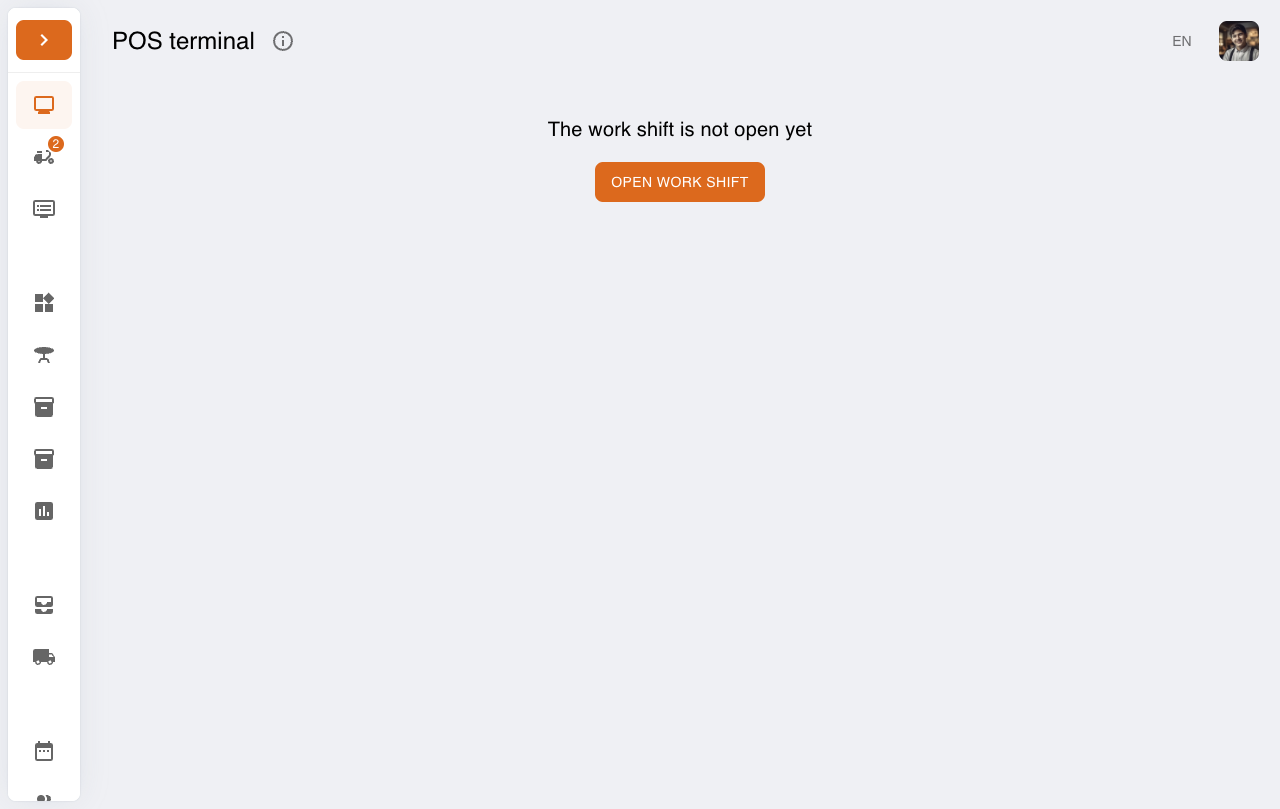
Go to the POS terminal. If the shift is not open yet, the system will show “The shift is not open yet” and the “Open shift” button.
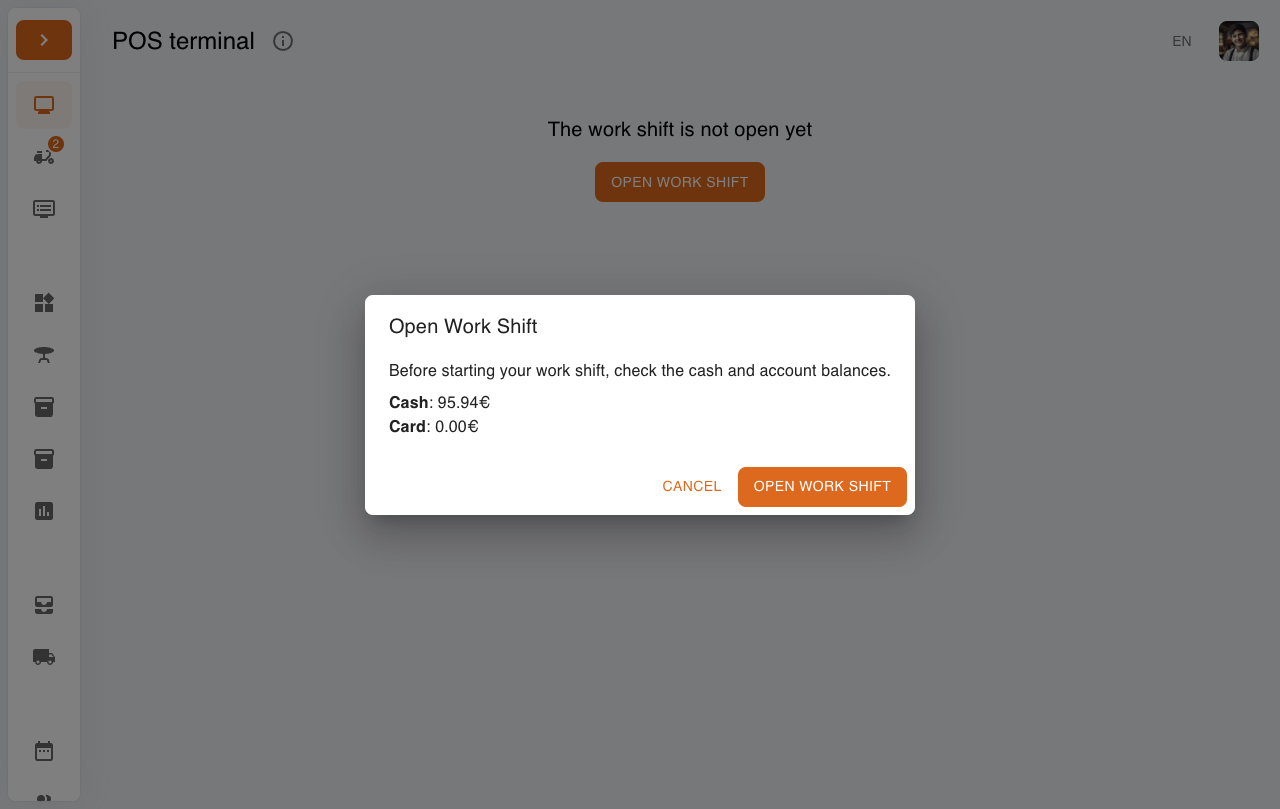
Click “Open shift”, review the opening balances in the confirmation dialog, and confirm.
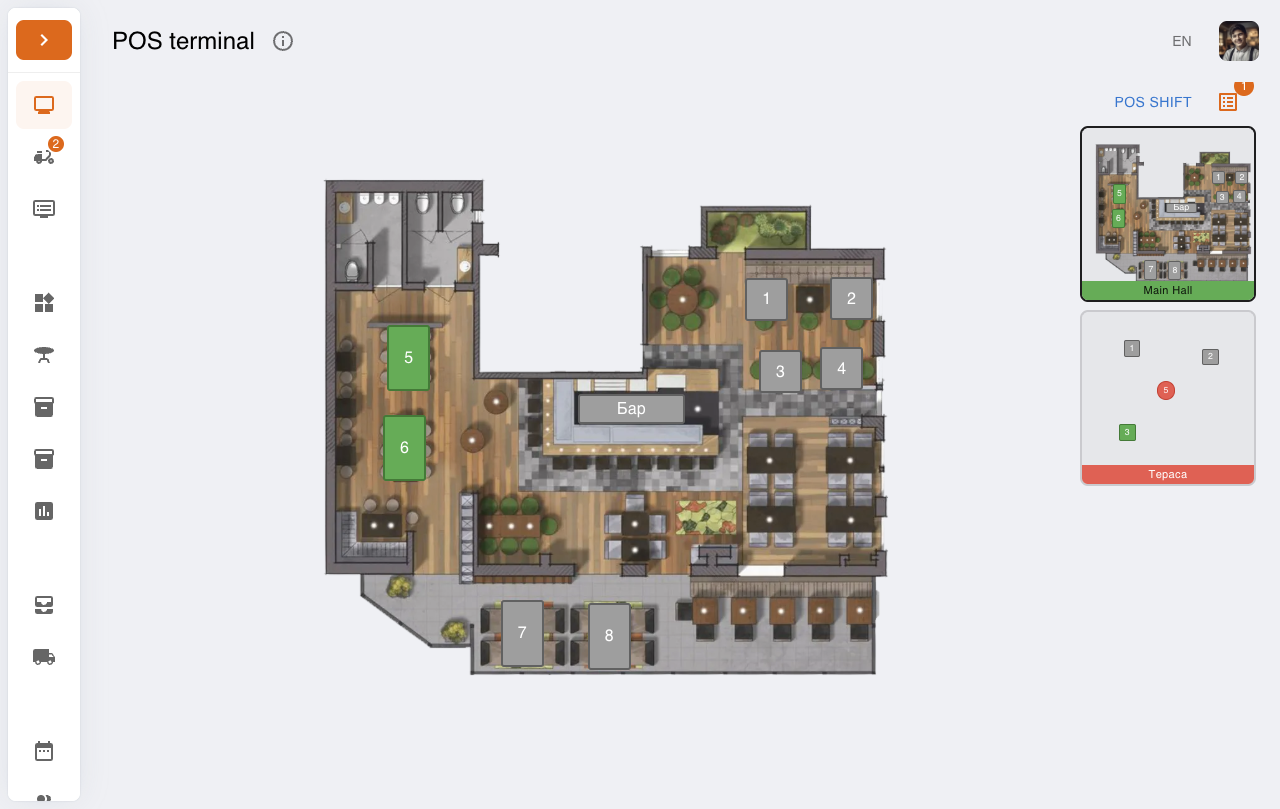
After a successful open, you will land on the POS working screen (tables/orders), and a “POS shift” button will appear at the top.
Step-by-step (close a shift)
In the POS terminal, click “POS shift” to open the current shift totals.
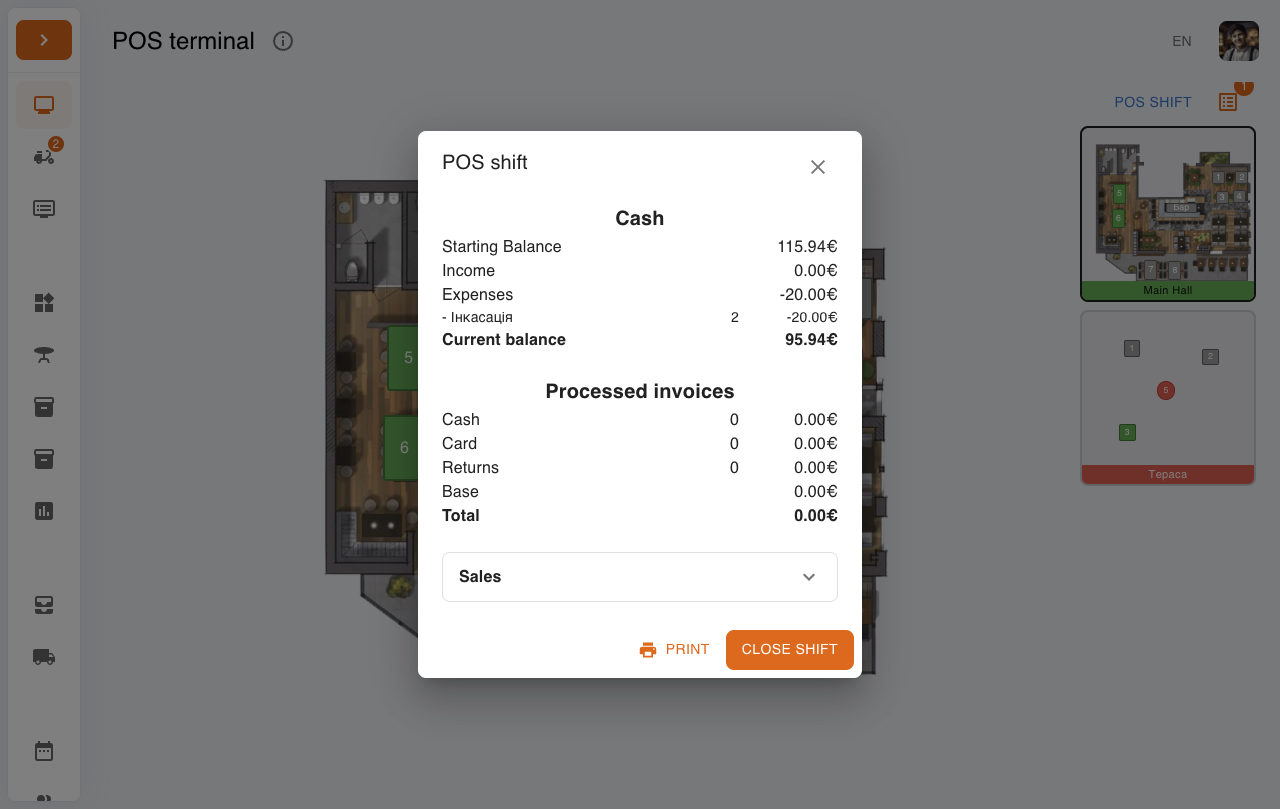
If needed, perform an incasation (take cash out of the register) before closing the shift.
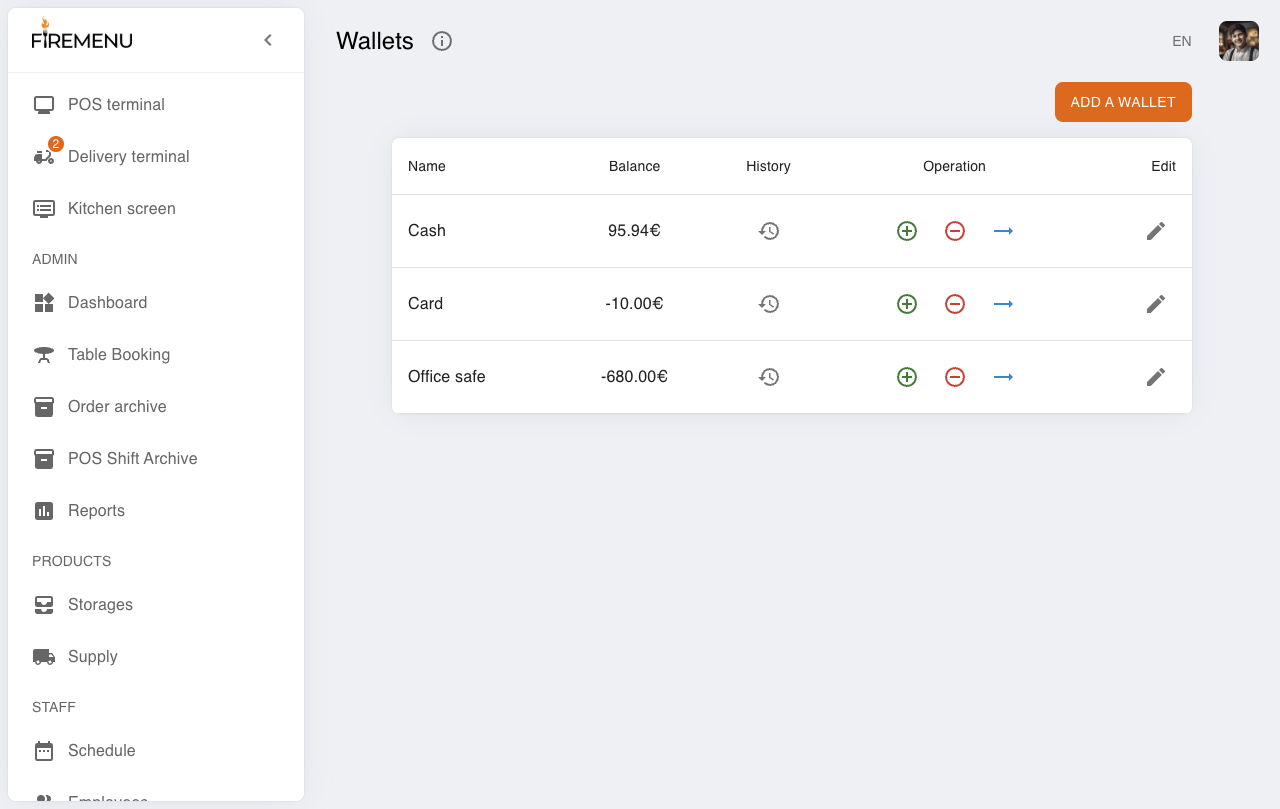
Go to Finance → Wallets, find the cash wallet (for example, Cash) and click the minus button (the “Expense” operation).
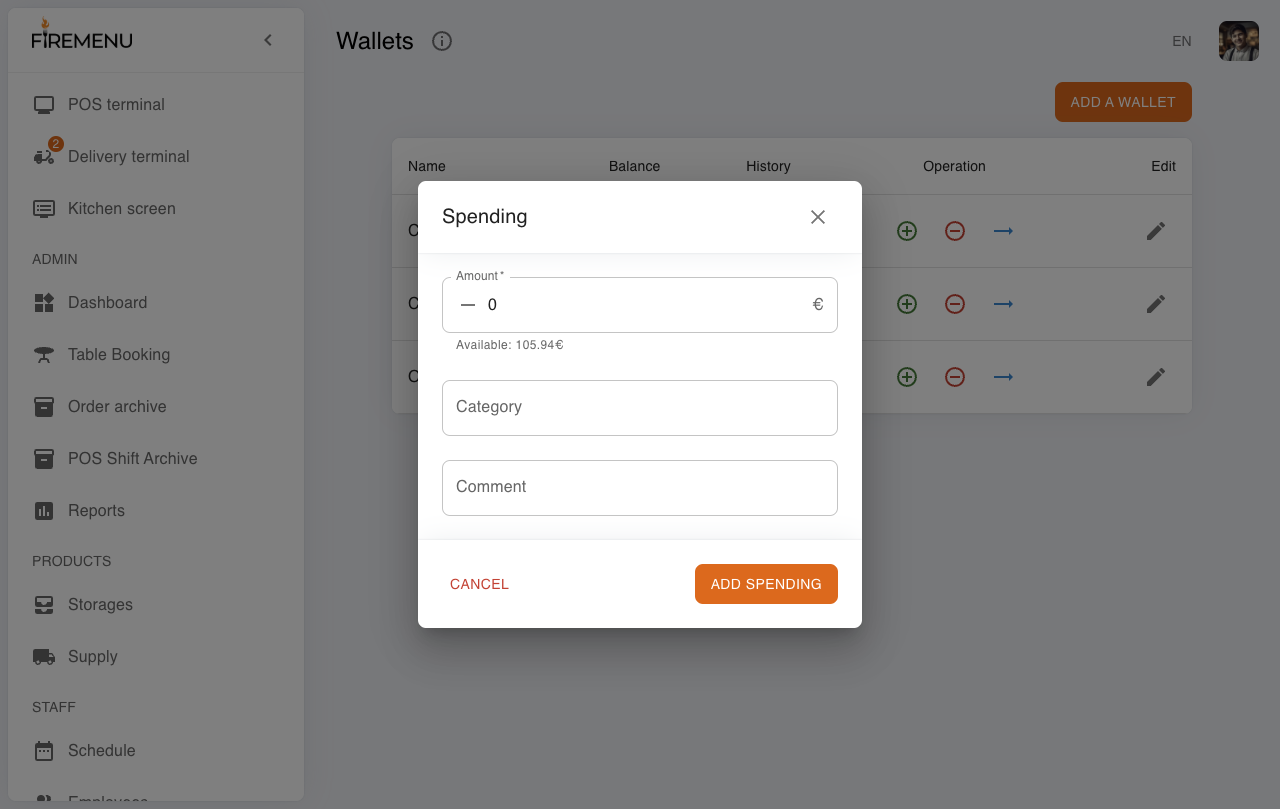
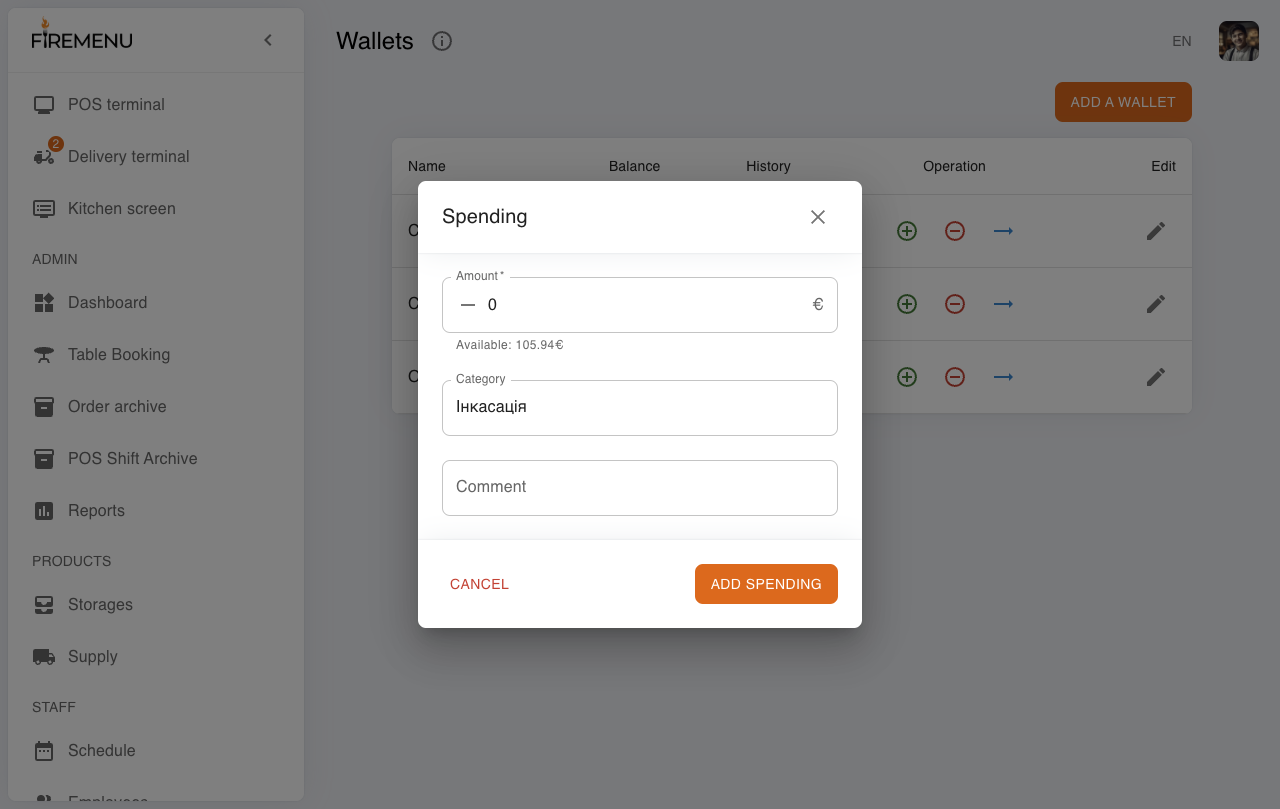
Enter the amount, select “Incasation” in “Category”, then click “Add expense”.
Make sure the cash balance decreased by the incasation amount.
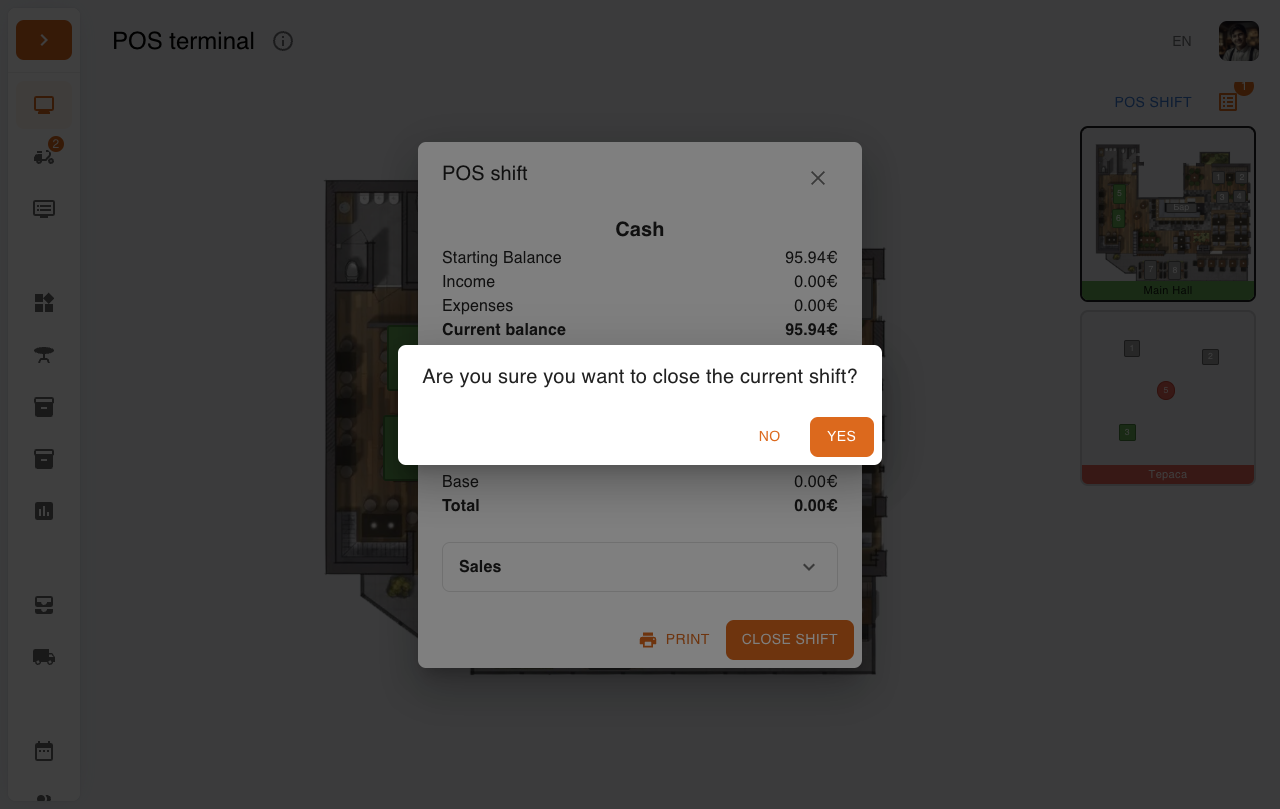
If needed, click “Print” to print the summary (X/Z report depending on the shift state).
Click “Close shift” and confirm in the dialog.
After closing, the POS returns to the “The shift is not open yet” state.
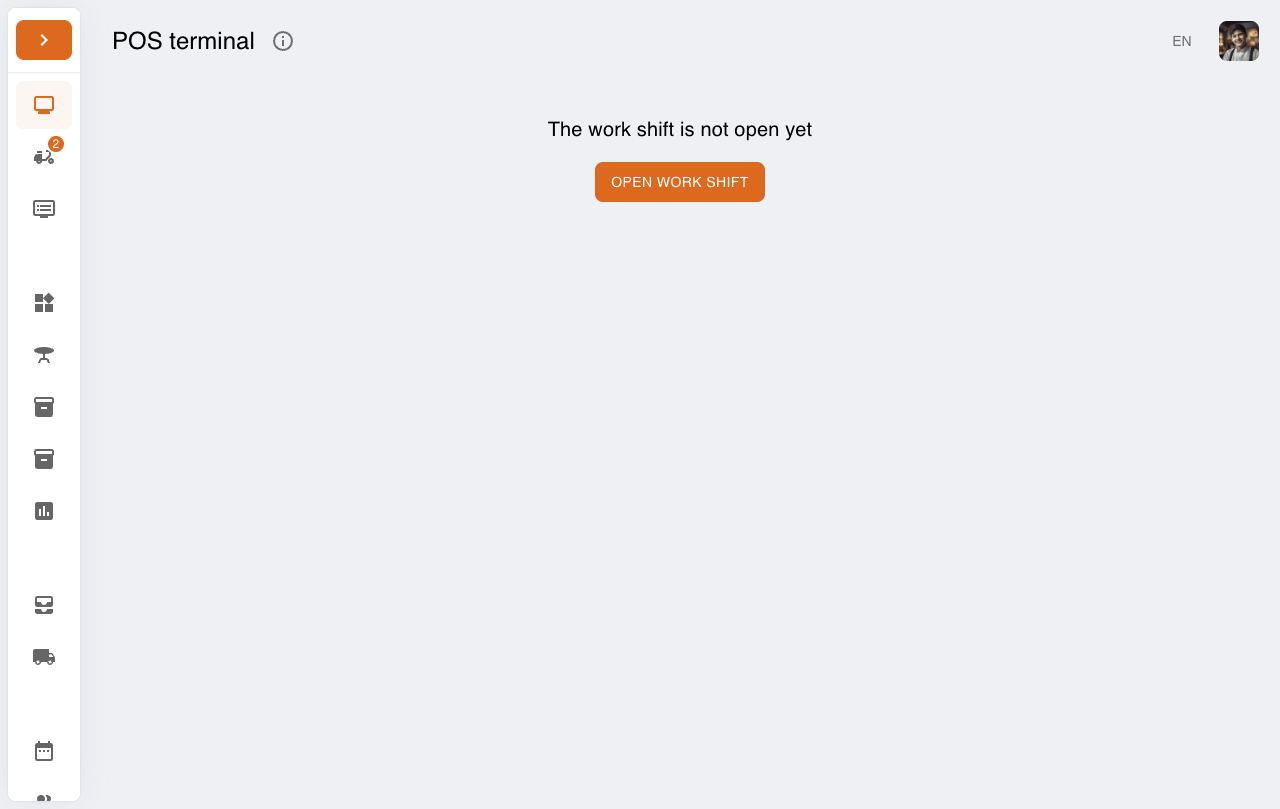
How to view the POS shifts archive
Open the menu item “POS shifts archive”.
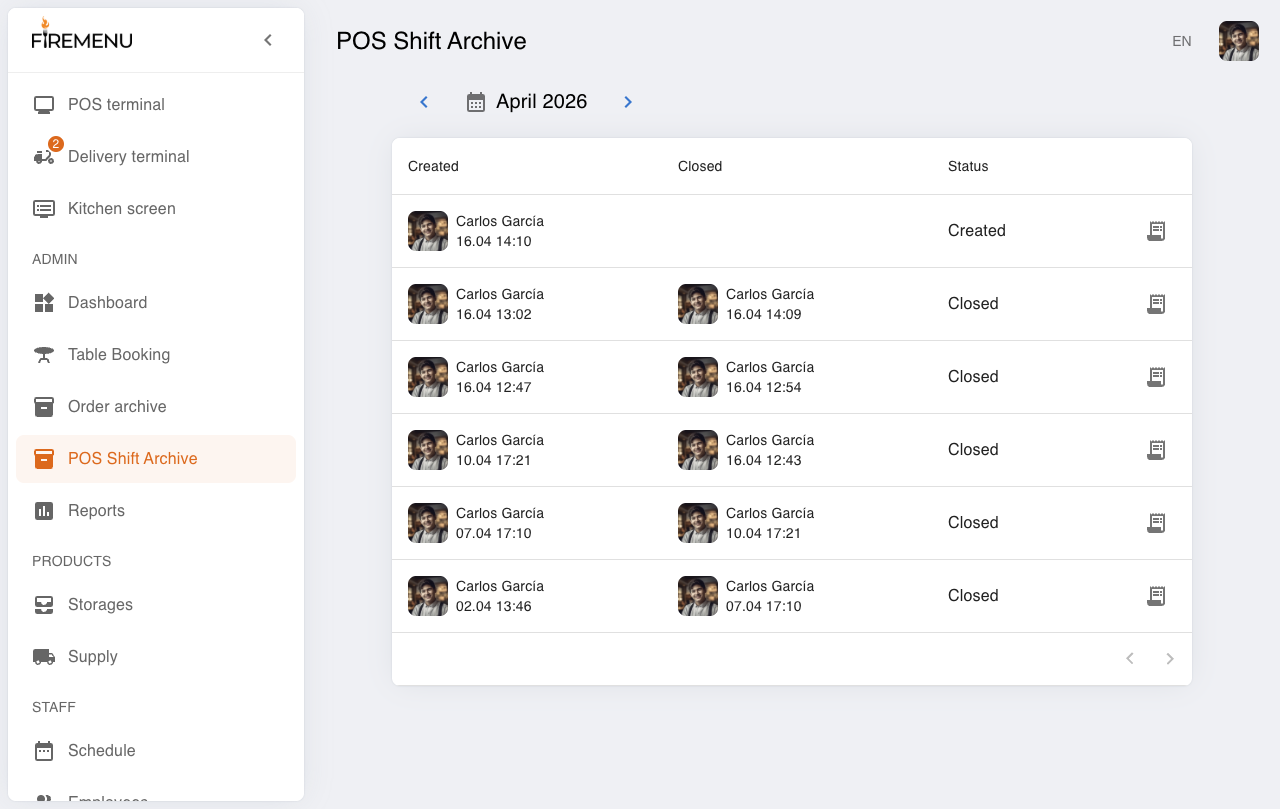
In the list, select the shift you need to view details (totals) or print.
Result check
- After closing the shift, the POS shows “The shift is not open yet”.
- A record for the closed shift appears in the POS shifts archive.
Common issues and fixes
-
Issue: The open/close shift button is disabled or missing.
Fix: Check staff permissions: the permission to open/close POS shifts must be enabled. -
Issue: The shift can’t be closed.
Fix: Make sure the device has a stable network connection. Closing can be blocked when the terminal is offline. -
Issue: After closing, the shift doesn’t appear in the archive.
Fix: Refresh the page and verify the shift is actually closed (after closing, POS shows the “shift not open” state).