
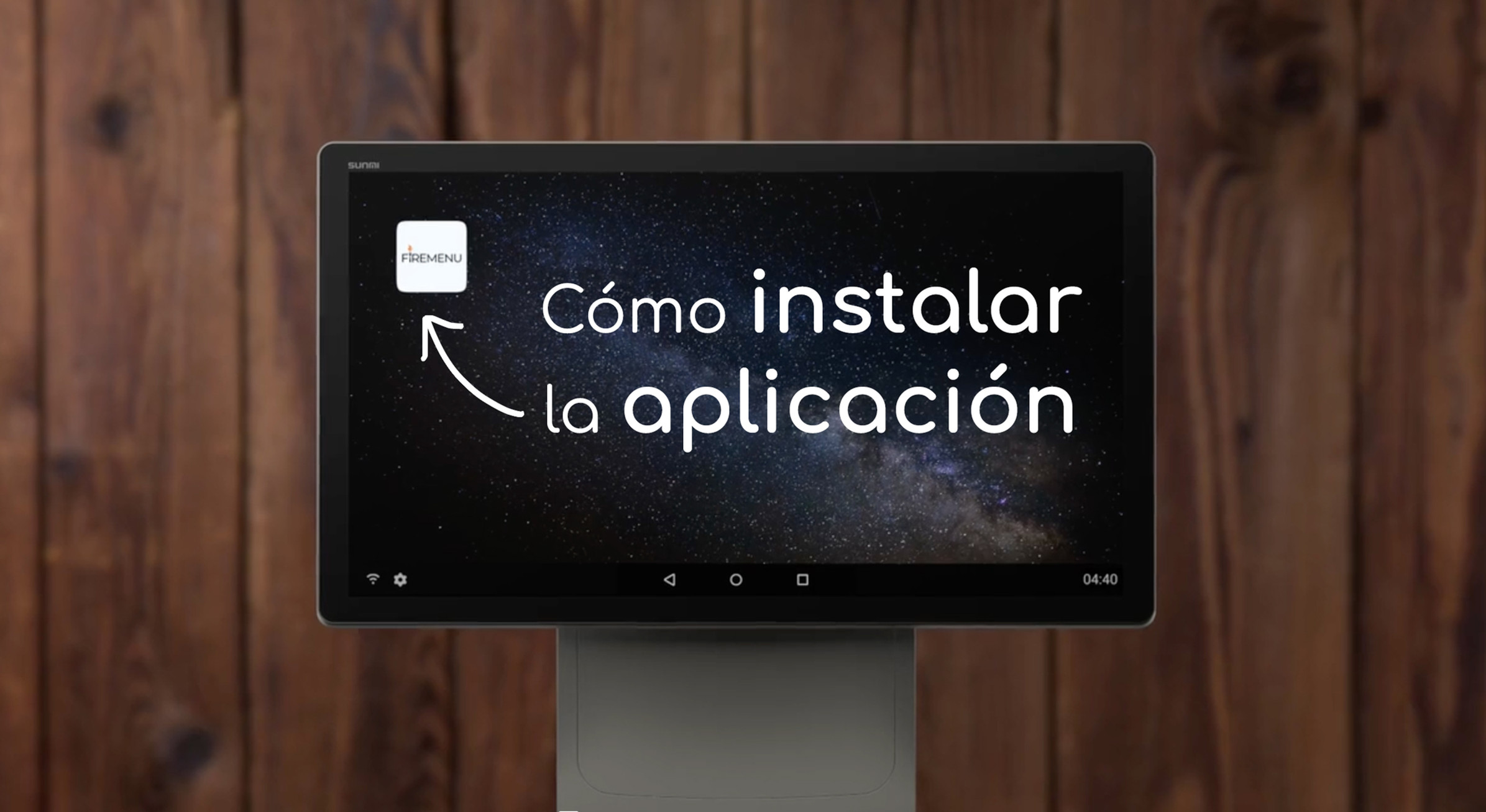
How to install the FireMenu app
FireMenu runs in a web browser on any device—desktop, tablet, or phone. Besides opening the site in a tab, you can install the web app (PWA) so it behaves like a regular app with a shortcut. That helps on shared terminals (one device, several shifts) and on personal phones staff carry.
Open FireMenu using the same URL you already use (often https://es.firemenu.app/, or your regional entry point if your venue was set up with one).
Computer (macOS, Windows, Linux)
- In Google Chrome, open your FireMenu URL—for example https://es.firemenu.app/ (or the domain your venue uses).
- In the top right of the address bar, click the Install icon (or the equivalent install control for the web app).
iPhone
- In Safari, open your FireMenu URL—for example https://es.firemenu.app/ (or the domain your venue uses).
- Tap Share
 at the bottom centre.
 - Choose Add to Home Screen
 (wording may vary slightly by iOS version).
Android
- In Google Chrome, open your FireMenu URL—for example https://es.firemenu.app/ (or the domain your venue uses).
- Tap the three dots
 menu in the top right.
 - Choose Install app
 or Add to Home screen — exact wording depends on your Android and Chrome version.
Common questions
- No Install button in Chrome—make sure the site is on HTTPS and Chrome is up to date; sometimes the option is under the three dots menu → Install….
- Use Safari on iPhone—Apple only supports reliable “Add to Home Screen” installation from Safari for this flow.
- Different domain—if your venue only signs in through a specific link, open that URL before installing so the shortcut opens the right place.
Related articles
- Authorization and sign-in—passwords and access basics.
- Create venues—adding locations under the same account.
- Multi-user terminal—one tablet or PC shared by several staff.