
Main menu
In FireMenu the menu for POS, QR menu, and delivery is defined in the back office as menu section → category → items (dishes, drinks, etc.). This keeps offerings grouped logically and lets you control guest visibility.
The editor requires «Menu and product settings» access—the same credential used for the product catalogue and semi-finished products.
Contents:
- How to open the menu editor
- How to manage menu sections
- How to manage categories
- How to add or edit menu items
- «Menu item» form fields
- Row order and navigation
- Typical scenarios and fixes
- Related articles
How to open the menu editor
In the sidebar expand «Settings» and choose «Menu».
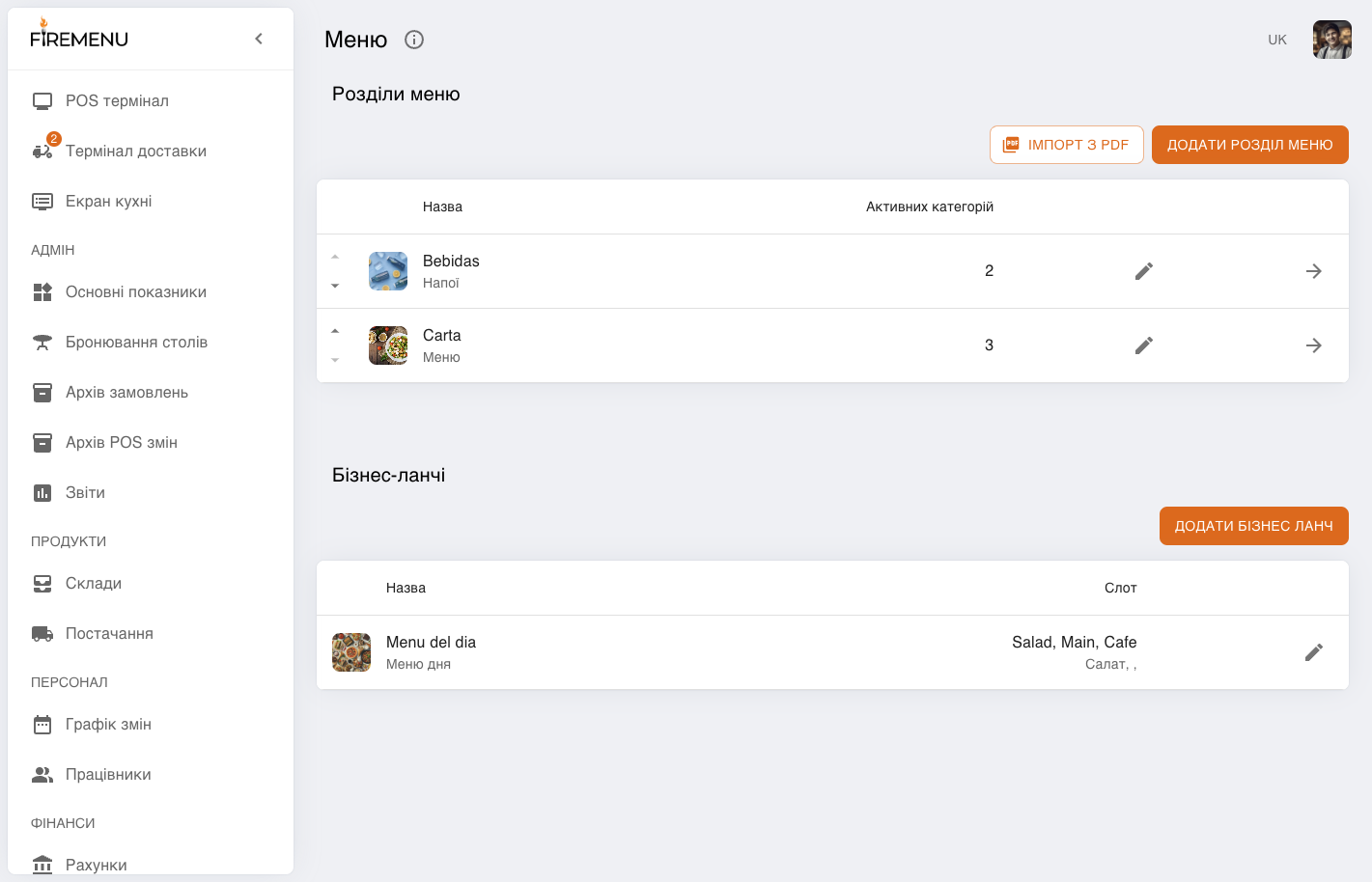
The page opens with the title «Menu» and the «Menu sections» block. The same page may include a separate business lunches block—see Business lunches.
How to manage menu sections
In «Menu sections» each row shows an image, «Name» (with a translation line when provided), «Active categories», and actions.
Click «Add menu section» to create a section, or the pencil icon to edit. In «Menu section» you can upload an image, set names with translations, and toggle «Show this section for visitors».
Click the row or the right arrow to open categories inside the section.
Reorder sections with the up/down arrows in the first column when they are visible.
How to manage categories
After entering a section you see its categories. Breadcrumbs at the top show «Menu sections» first, then the section name.
Click «Add category» or the edit icon to set name, description, image, and visitor visibility (similar to sections).
Click the row or right arrow to open menu items in that category.
How to add or edit menu items
In the items list click «Add a menu item» or the edit icon—this opens «Menu item».
Fill in fields as described under «Menu item» form fields.
Save with «Save changes» for edits or «Add» for new items. In edit mode you can «Remove» after confirmation.
«Menu item» form fields
Below are the main fields. Some blocks are accordions—expand them to edit.
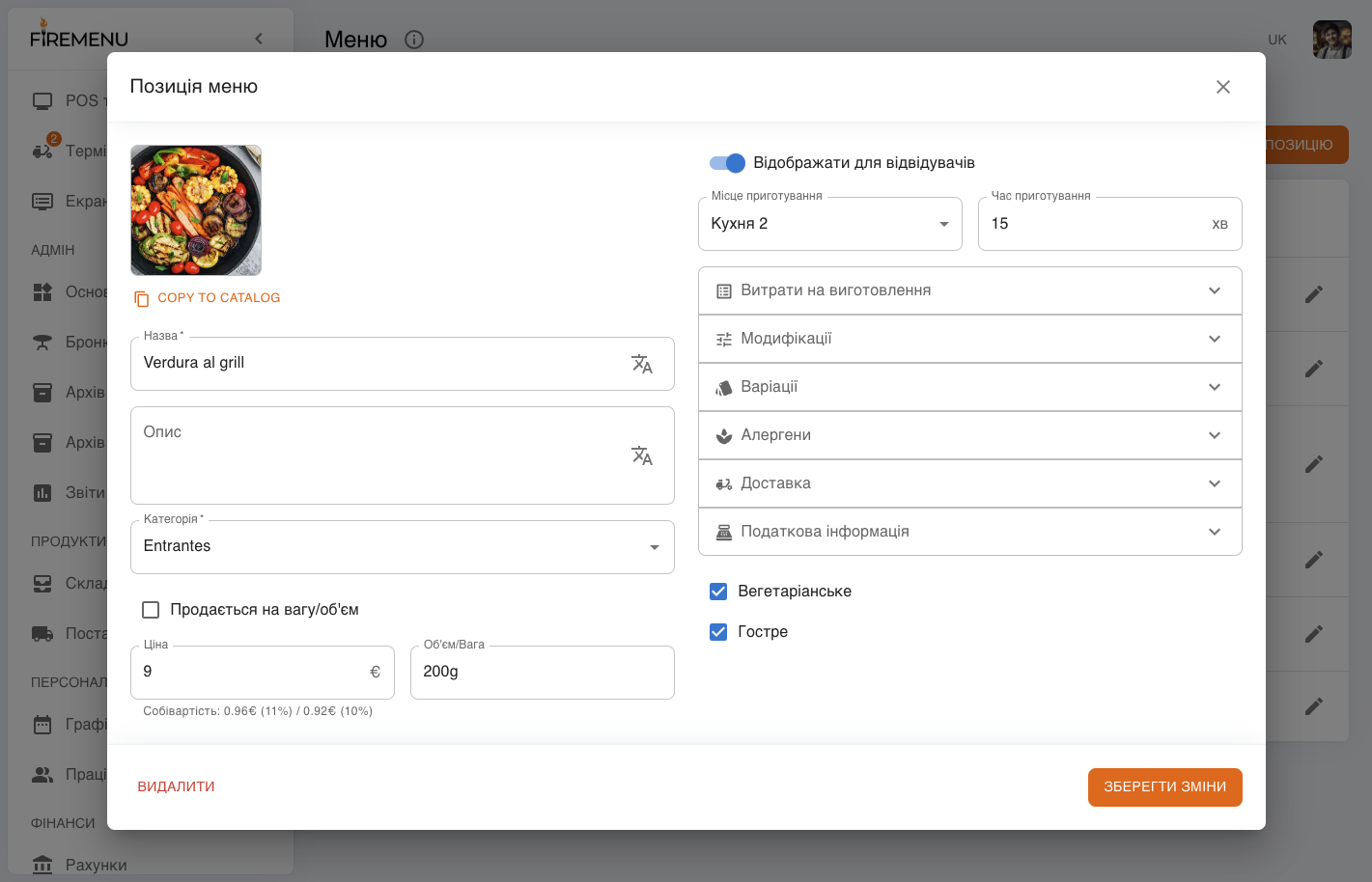
Left column (core data):
- Image — upload or pick from the image catalogue.
- «Name» and «Description» — staff and guest text; open translations for other languages where needed.
- «Category» — move the item if needed; categories are grouped under menu sections.
- «Sold by weight/volume» — when enabled, set «Unit» (g, ml, etc.) and «Standard portion» for weight-based pricing. When disabled you usually see «Volume» / «Weight» as a portion hint such as “250 ml” without weight-based sale.
- «Price» — venue currency.
- «Edit tech card» — opens production costs (main item, modifiers, variations, delivery). Changes apply to the dish form after Done in the tech card and Save changes on the menu item. A central list lives under Tech cards.
- «Show for visitors» — whether guests see the item (QR menu, web, etc.).
Right column (kitchen and timing):
- «Cooking place» — ties the item to a kitchen/bar zone. This drives available POS statuses, kitchen screen routing, and kitchen ticket printing.
- «Cooking time» — minutes; used for timers on the kitchen screen.
Accordions (additional settings):
- «Extra modifiers» — optional add-ons (e.g. sauce): name, price, guest visibility. Composition and costs per modifier are set in the tech card.
- «Presentation options» — mandatory choices without changing base price (e.g. side dish). Names are set here; costs in the tech card. Staff must pick an option when ringing the item.
- «Allergens» — allergen markers.
- «Delivery» — «Show in delivery» and «Price in delivery». Additional delivery production costs (packaging, etc.) are in the tech card when delivery is enabled.
- «Tax information» — VAT rate (for example 10% or 21%).
Below the accordions:
- «Vegetarian» and «Spicy» — extra badges for the menu.
More on kitchens and statuses: Kitchen places and statuses.
Row order and navigation
- Breadcrumbs and the back control return to sections or categories without typing URLs.
- Use sort arrows on sections, categories within a section, and items within a category—order updates POS and guest menus.
- If a hidden-eye icon appears near a name, the row is hidden from visitors until re-enabled in the edit form.
Typical scenarios and fixes
-
Item not visible on the floor. Check visibility toggles on the section, category, and item; confirm the category sits in the intended section.
-
Item missing on the kitchen screen or kitchen ticket. Verify «Cooking place»—it defines kitchen routing and ticket printing. Details: Kitchen places and statuses.