
Business lunches
A business lunch (listed in admin as Business lunches) is a fixed bundle at a single price—for example soup + main + drink. The guest or cashier picks one option in each slot, then FireMenu adds one lunch line to the order with every chosen component for the kitchen and reporting.
It is a practical way to sell a daily menu without adding each dish manually.
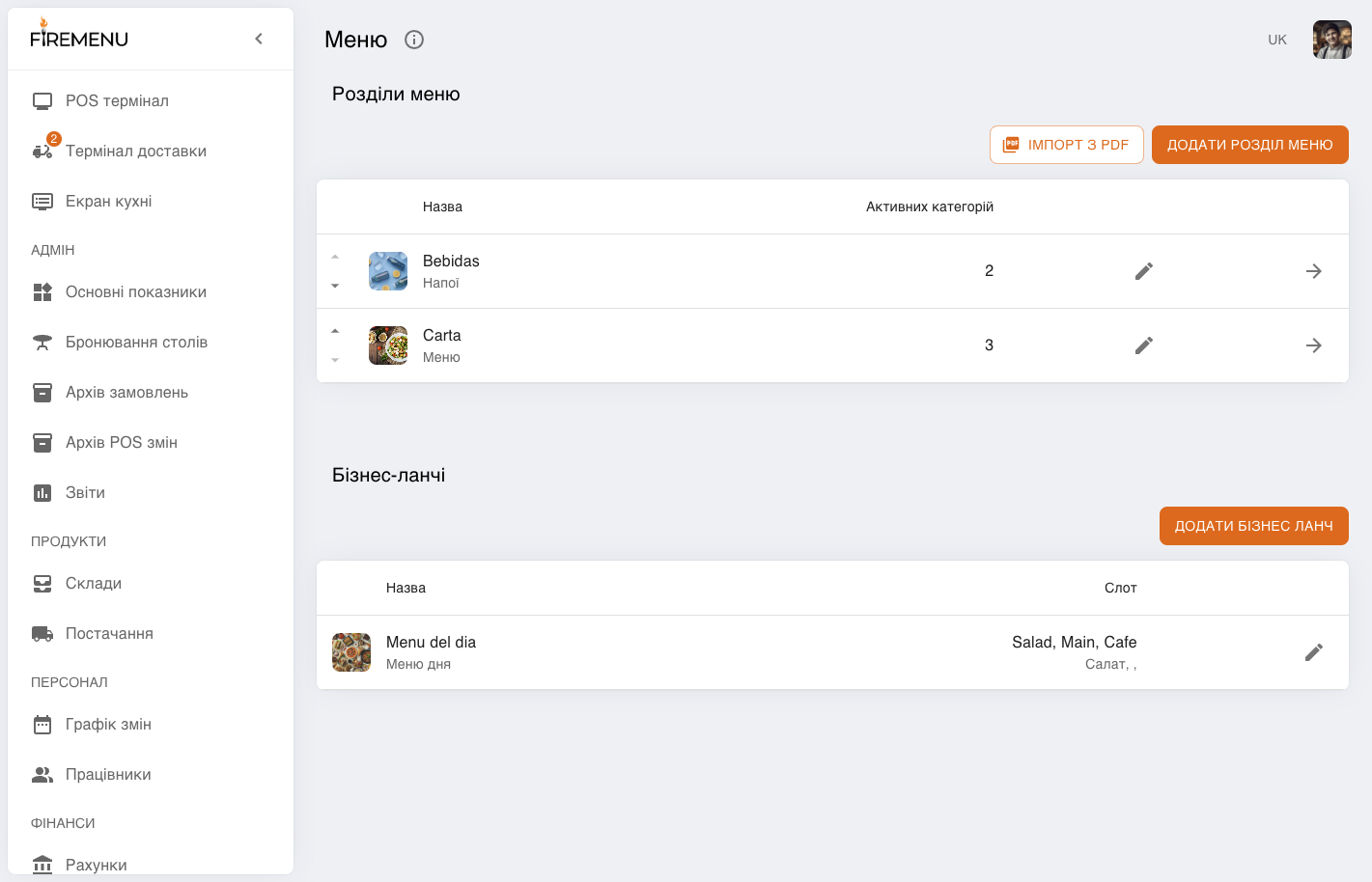
Where to configure
- Open Settings → Menu.
- On the page with Menu sections, scroll to the Business lunches table (same screen as sections—see Main menu).
- Click Add business lunch or open a row—this opens the Business lunch card.
Lunch card fields
- Image, name, and description—like regular items; translations can be added for the QR menu.
- Price—the lunch price for dine-in / POS orders.
- Price in delivery—the amount when the same lunch is sold for delivery; by default it can follow the base price if you keep them aligned.
- Show for visitors—whether the lunch is visible in the QR menu (and guest-facing menus where applicable).
- Show for delivery—whether the lunch is offered in the delivery flow.
Save with Save changes or Add for a new lunch. Remove with Remove and confirmation.
Slots and options
Each slot is one choice step (for example “First course”). Every slot must have at least one option; otherwise you will see an error that each slot must have at least one option.
- Add slot—adds another choice step.
- Under the slot, use Add option or tap a card to open Option.
Important option fields:
- photo, name, description (plus translations if needed);
- cooking time and cooking place (kitchen)—where the ticket is routed;
- Costs of production—components for cost and write-offs; easier to maintain centrally under Tech cards (Set menus tab). The option form still has a Costs of production accordion;
- allergens, vegetarian, spicy flags;
- Show for visitors and Show in delivery—whether this specific variant appears in the room and in delivery (for example soup only in-house).
If hot/stop list marks apply to a variant, it may appear dimmed in the POS picker depending on your list settings.
POS and delivery behaviour
The POS menu shows a Business lunches section only when at least one lunch exists. After choosing a lunch, a dialog asks for one option per slot, then confirms—one order line is added with all slots.
For delivery, the delivery price is used when set, and variants with delivery display turned off are not offered.
Adding a lunch to an order requires the same create/edit order permissions as regular dishes.
Days, hours and current availability
Set the days of the week and the From / To time window in the business-lunch card. FireMenu evaluates this schedule in venue time and shows it on the lunch card in POS and QR.
Outside the configured schedule the lunch is marked Unavailable now:
- POS and QR keep the card visible with its schedule, but do not allow it to be added;
- QR checkout is blocked if a lunch in the cart becomes unavailable before submission;
- delivery visibility still follows Show for delivery in addition to the schedule.
For an all-day lunch, use the full-day configuration shown by the form. Test overnight or midnight boundaries before publishing the menu.
Common questions
- No Business lunches section on the POS—there are no saved lunches yet, or they are all hidden from display.
- Cannot save—ensure every slot has at least one option.
- Different dine-in vs delivery pricing—set Price and Price in delivery on the lunch card; hide individual variants in delivery with Show in delivery on each option.
Related articles
- Tech cards—production costs for lunch options.
- Main menu—sections, categories, and the Menu screen.
- Hot / stop lists—temporary unavailability.
- POS terminal order flow—adding items to the ticket.
- QR menu features—when guests order from their phones.