
Hot/Stop lists
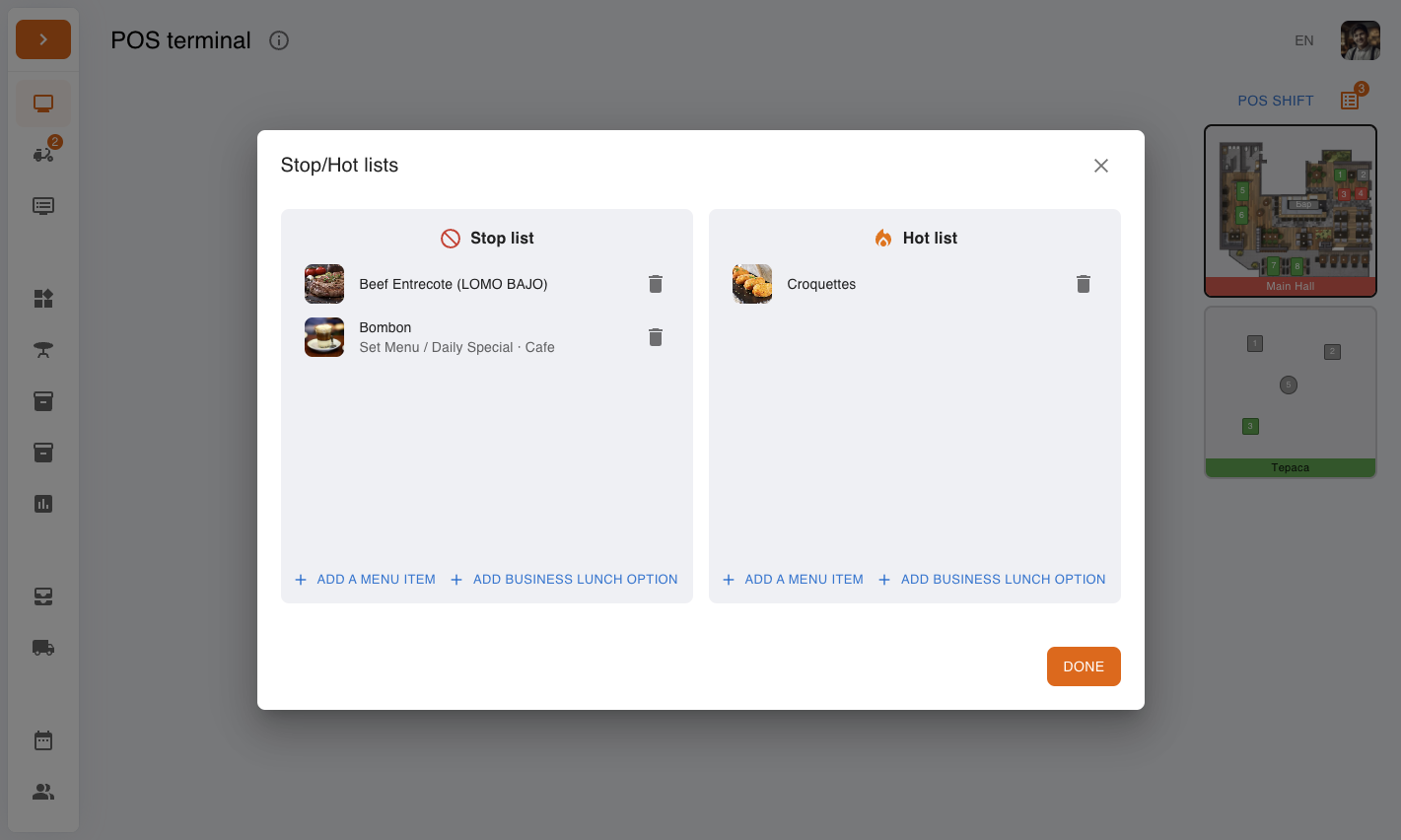
Hot/Stop lists let you quickly manage item availability without editing your menu:
- “Stop list” means the item is temporarily unavailable for sale.
- “Hot list” marks an item as highlighted/priority.
This is useful in day-to-day operations when the kitchen needs immediate control (ingredient shortage, temporary focus on specific items, business lunch slot management).
Contents:
- What it is and when to use it
- How chefs manage stop/hot lists on the Kitchen screen
- How waiters work with stop/hot items in the POS terminal
- How to work with business lunch slots in stop/hot lists
- Related articles
What it is and when to use it
- Use “Stop/Hot lists” when you need to quickly control dish and business lunch option availability without changing menu structure.
- For the kitchen, this is an operational control tool: what is temporarily not prepared (“Stop list”) and what should be highlighted for the floor team (“Hot list”).
- For waiters, these are visual indicators in POS: stop items appear as unavailable/overlaid, hot items show a fire icon.
How chefs manage stop/hot lists on the Kitchen screen
Open the “Kitchen screen” section and, if needed, select the required kitchen tab at the top.
Click the list icon in the top-right area to open the “Stop/Hot lists” modal.
To add an item to the “Stop list”, click “Add a menu item” in the left column, then select the dish.
To add an item to the “Hot list”, click “Add a menu item” in the right column and select the dish.
To remove an item from either list, click the delete icon next to it (“Remove from list” action).
Finish with the “Done” button.
How waiters work with stop/hot items in the POS terminal
In POS, open a menu category and add items as usual.
Watch the visual markers:
“Stop list” — a prohibition icon overlays the item image, and the item appears unavailable.
“Hot list” — a fire icon appears on the item.
If an item has already been added to an order, the same markers are also visible in the order item list, helping you spot availability changes while working with the check.
If many stop items appear during peak hours, sync with the kitchen through “Stop/Hot lists” so the floor team works with the current assortment.
How to work with business lunch slots in stop/hot lists
In the “Stop/Hot lists” modal, use “Add business lunch option” when you need to limit or highlight a specific slot option rather than the whole dish.
Select the required option — it is displayed with context business lunch · slot, so you can quickly identify where the restriction applies.
In POS, while selecting business lunch options, waiters see the same markers: stop options are overlaid with the prohibition icon, hot options are marked with fire.