
Orders archive
Contents:
- What this is and when to use it
- How to open Order archive
- How to use the Open orders tab
- How to use the Closed orders tab
- How to view and print a bill
- How to review order history
- How to create a B2B invoice
- How to cancel an invoice
- Common issues and fixes
- Related articles
What this is and when to use it
- Order archive helps you quickly find both active and already paid/closed orders.
- Use it to verify order details, reprint a bill, or open the order change history.
- This section is especially useful for admins, cashiers, and waiters who monitor daily order flow.
How to open Order archive
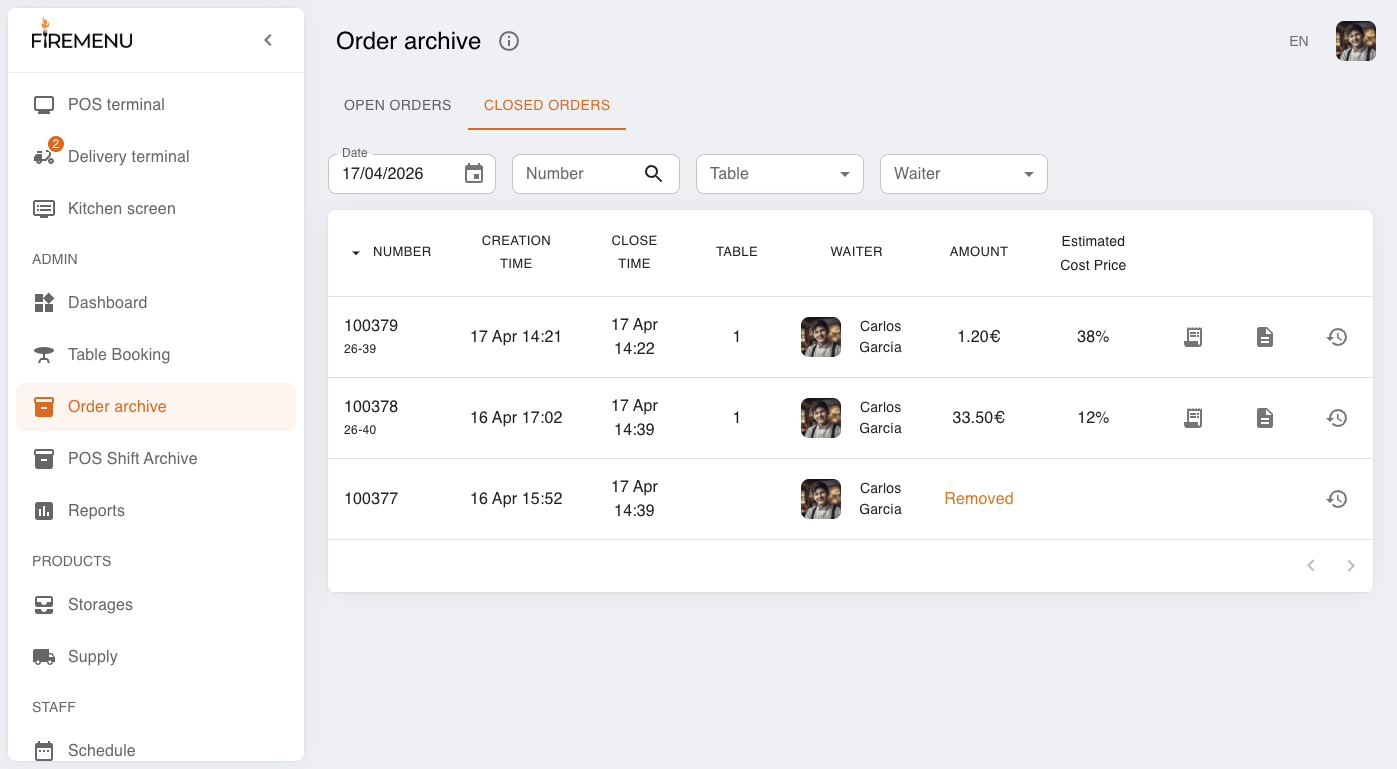
In the left sidebar, open the Admin section and click Order archive.
Confirm that two tabs are visible at the top: Open orders and Closed orders.
How to use the Open orders tab
Open the Open orders tab — it shows active orders in your venue.
Use the filters in the table header if needed:
- Number to search by order number or bill number;
- Table to filter by table;
- Waiter to filter by employee.
If the employee does not have the View archive of other employees permission, only their own orders are shown.
How to use the Closed orders tab
Open the Closed orders tab — data is loaded for the selected day and sorted by payment time (newest first).
Pick the required day in the Date field to review another day.
Use the same Number, Table, and Waiter filters to narrow results.
How to view and print a bill
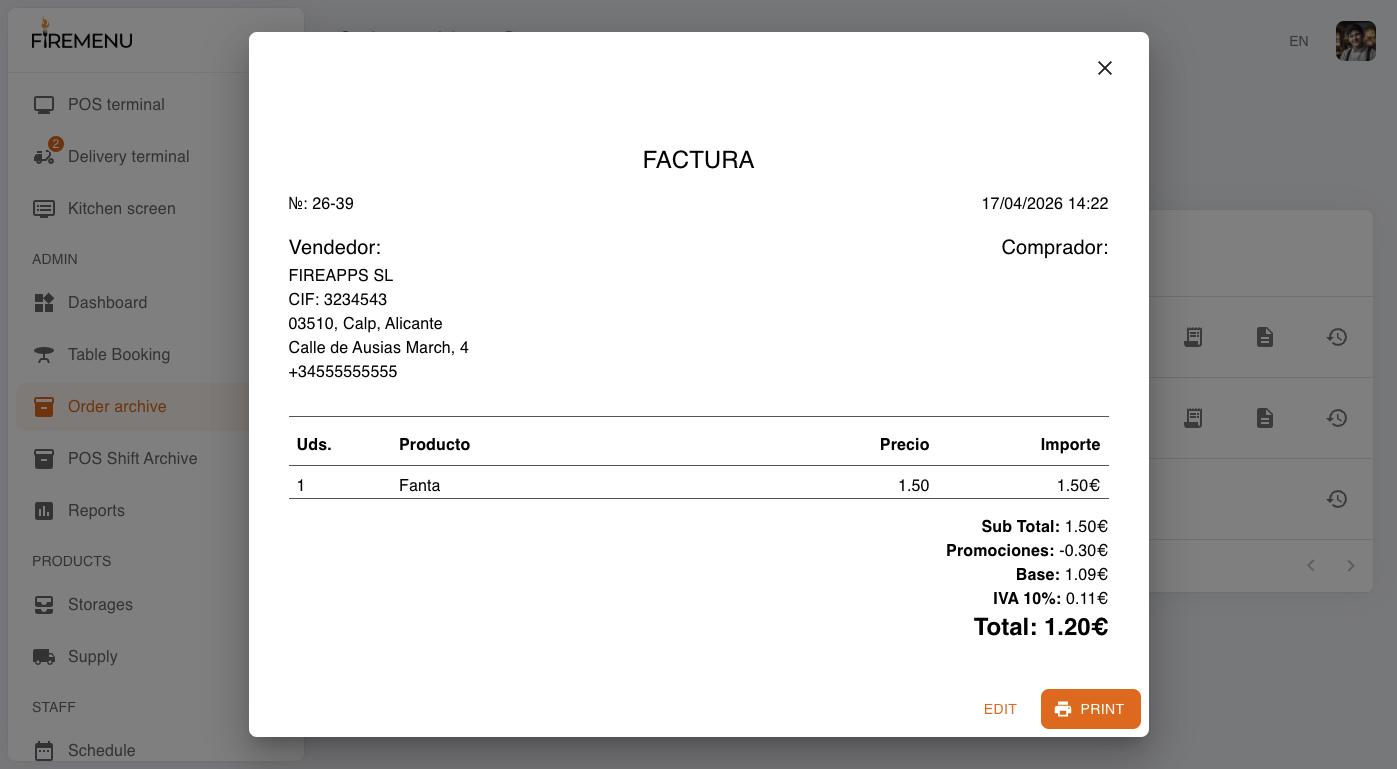
In the needed order row, click the bill icon to open the bill preview/print window.
Verify bill details in the preview: items, discounts, totals, and payment method.
Click Print to print the bill.
If printing controls are disabled, check that the employee has the Print bill permission.
How to review order history
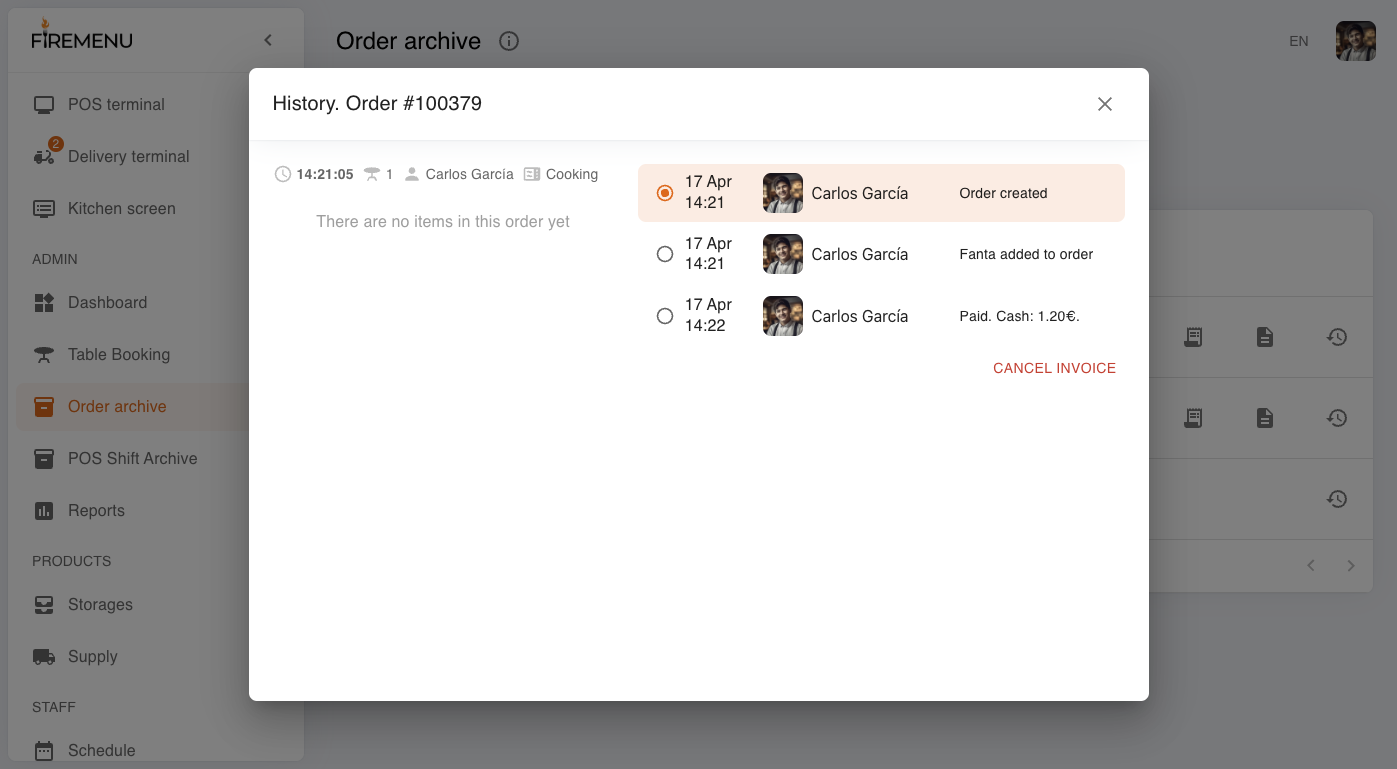
In the order row, click the history icon.
In the History window, review order events: creation, edits, prints, payment, cancellation, and other changes.
Select a specific log entry to inspect the exact order state at that moment.
How to create a B2B invoice
In the Closed orders tab, find a paid order and click the document icon (B2B).
In the invoice window, click Edit to open Customer information.
Fill in required fields: Legal name, NIF/CIF, Address, Town, province, Postal code.
Optionally add extra fields: Payment method, Account number, Payment deadline, then click Save changes.
Return to the invoice window and click Print if you need a printed copy immediately.
How to cancel an invoice
In the orders table, open the history icon for the needed paid order.
In the History window, click Cancel invoice.
In the confirmation dialog, fill in Cancellation reason and confirm with Yes.
After confirmation, the system creates a cancellation record, and the history shows a Payment canceled event.
To review the cancellation invoice, return to this order row in Closed orders, click the bill icon, then switch to the Rectificativa tab in the print window.
Invoice cancellation is available only when the order is paid, has not been canceled before, and the employee has permission to cancel payment.
Common issues and fixes
-
Issue: The Order archive menu item is missing.
Fix: Check employee permissions; access to archive may be disabled. -
Issue: Orders from colleagues are not visible.
Fix: Enable the View archive of other employees permission. -
Issue: The date picker in closed orders is disabled.
Fix: Clear the Number search field — date selection is disabled while number search is active. -
Issue: The Cancel invoice button is not visible in history.
Fix: Make sure the order is paid, not already canceled, and the employee has payment cancellation permission. -
Issue: B2B invoice data cannot be saved.
Fix: Check that all required fields in Customer information are filled in.
Related articles
Audit filters
The closed-orders table includes three quick audit filters:
- Suspicious operations—orders marked after potentially sensitive changes; the warning icon also appears next to the order number.
- With discount—paid orders where a discount was applied.
- Deleted—closed order records that were removed instead of paid.
Filters can be combined with date, number, table and waiter. Use them as a review queue, then open History to inspect the actual event sequence; the warning is a signal for verification, not proof of misuse.