
B2B invoices
A B2B invoice in FireMenu is a structured document for a paid order that shows the buyer’s legal details (company, tax ID, address, etc.) alongside your venue’s details and the line items. It is easy to hand to the counterparty’s accounting or print for signature.
It is not a standalone accounting module—only view and print on top of an order once buyer details are filled in.
Where to open the invoice
- Order archive → Closed orders. For a paid order that still has items, tap the document (B2B) icon. Cancelled or unpaid orders are not eligible.
- Or Marketing → Clients → Legal entities → open order history for a company and use the same B2B action on a paid order.
Both paths open the same invoice window with actions.
Permissions
Staff need Print bill enabled to see the B2B icon and print. If it is missing, ask an administrator—this is configured under Workers and access.
Buyer details
- In the invoice window, click Edit—this opens Customer information.
- Fill the required fields:
- Legal name;
- NIF/CIF (counterparty tax number);
- Address;
- Town, province;
- Postal code.
- Optionally under Additional information, add Payment method, Account number, and Payment deadline (e.g. payment terms or bank transfer details).
- Click Save changes.
The preview updates with buyer and seller blocks (venue data comes from your bill/print settings), the item table, and totals.
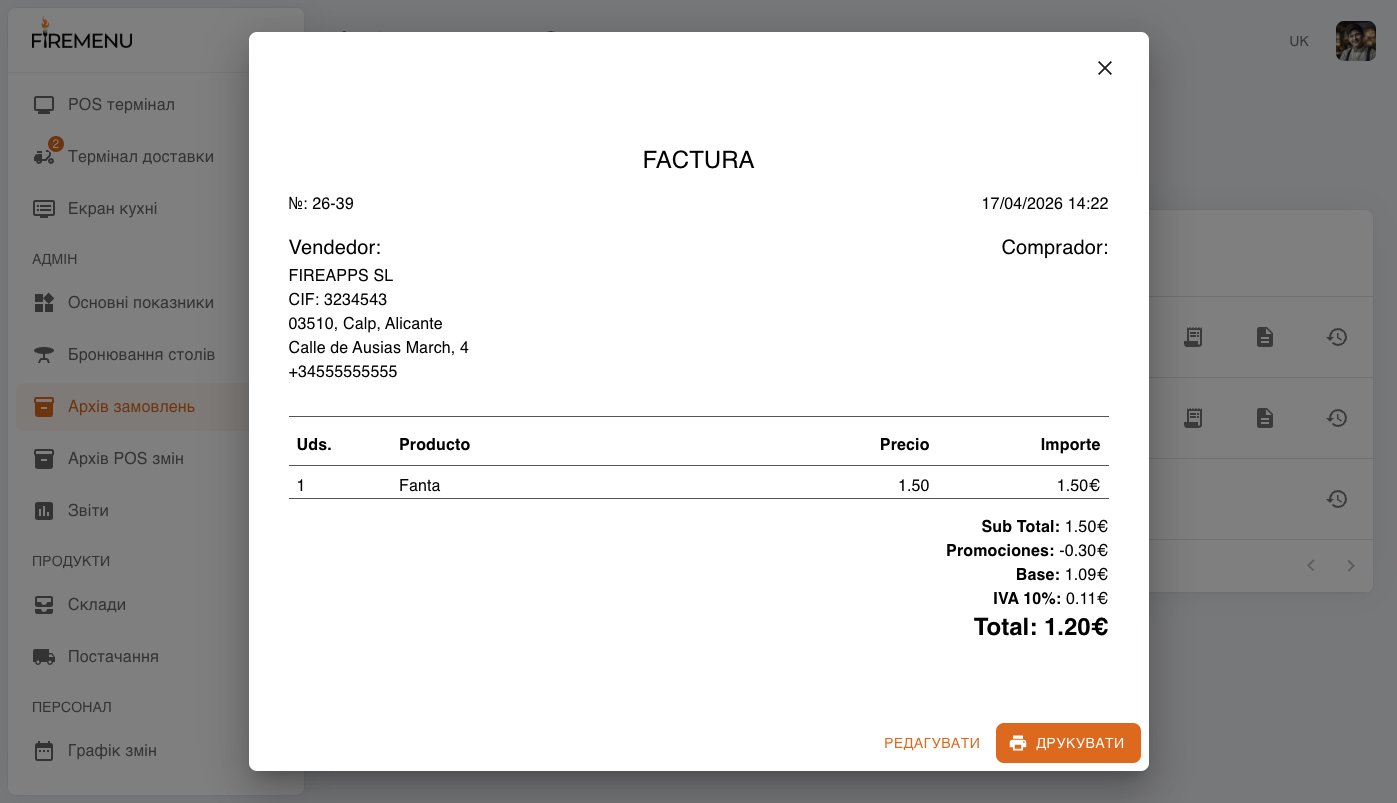
Printing
In the same window, click Print to send the layout to the browser print/PDF flow (depends on device).
Preset data on a legal entity
For repeat B2B customers, store the same Customer information fields on the legal entity card under Clients—when that entity is chosen on the POS order, data can flow into the invoice with less retyping. See Clients.
Cancellations and corrections
If your process requires cancelling a payment or correcting an invoice, follow the order history flow (Cancel invoice and follow-up steps). The walkthrough is in Order archive.
Common questions
- No document icon—order not paid, cancelled, or has no lines; or Print bill is off.
- Save fails—check every required field in Customer information.
- Fixed wording on the print layout—some labels are region-specific; what matters are amounts, lines, and the details you entered.
Related articles
- Order archive—closed orders, receipt, history, invoice cancellation.
- Workers and access—who can print bills and open B2B invoices.
- Clients—legal entities and their order history.
- Invoice print layout—guest bill appearance.
- POS terminal order flow—when an order becomes paid and reaches the archive.